VLESS on iPhone, iPad & Mac with V2RayTun
Import from clipboard or QR code.
V2RayTun is a lightweight VLESS client for iPhone, iPad and Mac. Import your link once and connect with one tap.
What you need
- iPhone or iPad with iOS 15+, or a Mac with Apple silicon
- An active RealVPN plan
-
Get your VLESS config
Sign in at realvpn.io, open the Account menu and choose Manual VPN setup — or go straight to realvpn.io/settings.
Select VLESS, choose a location close to you and press Generate config. You’ll get a VLESS link and a QR code.
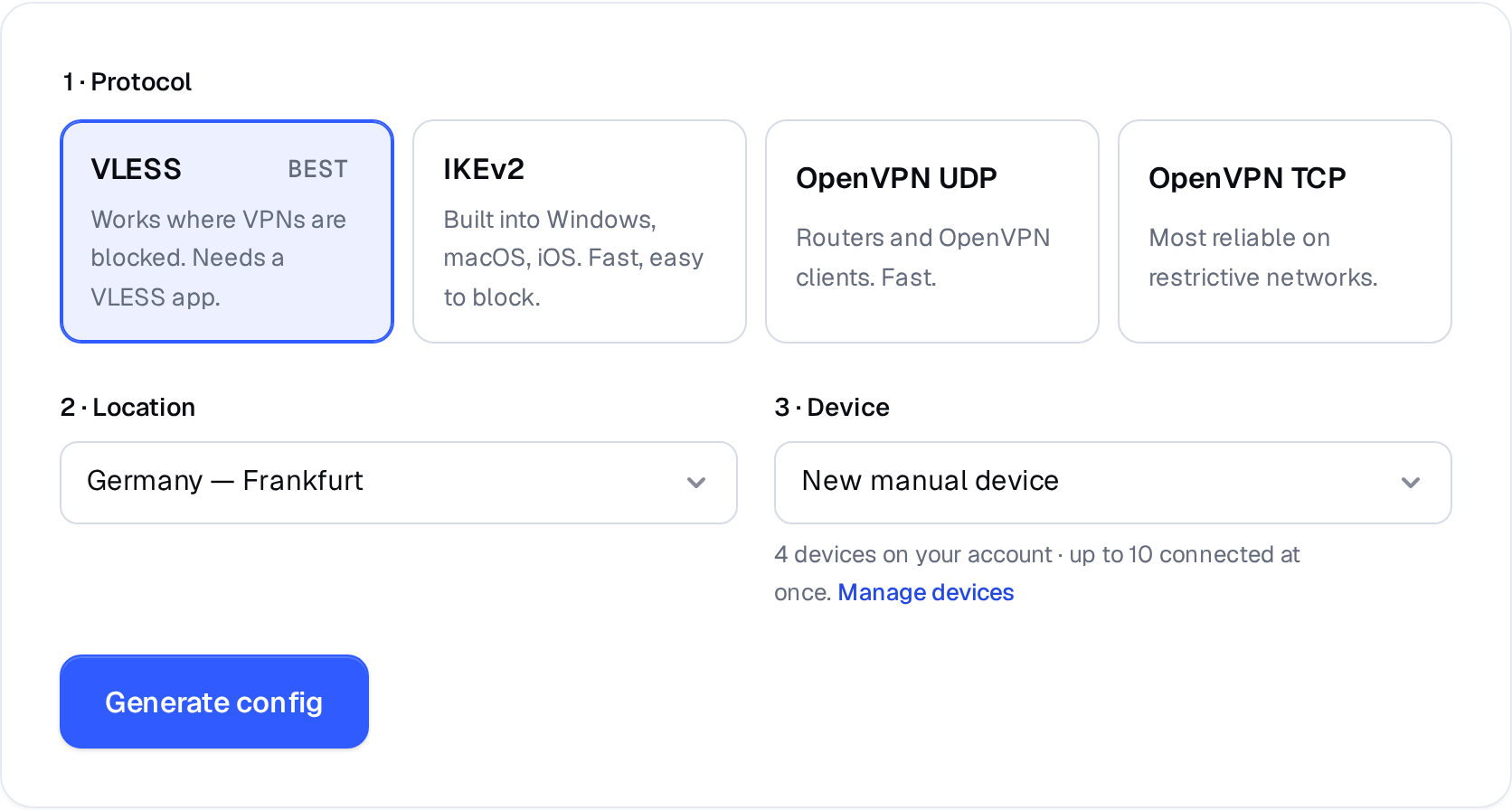
Manual VPN setup: pick a protocol, a location and a device. 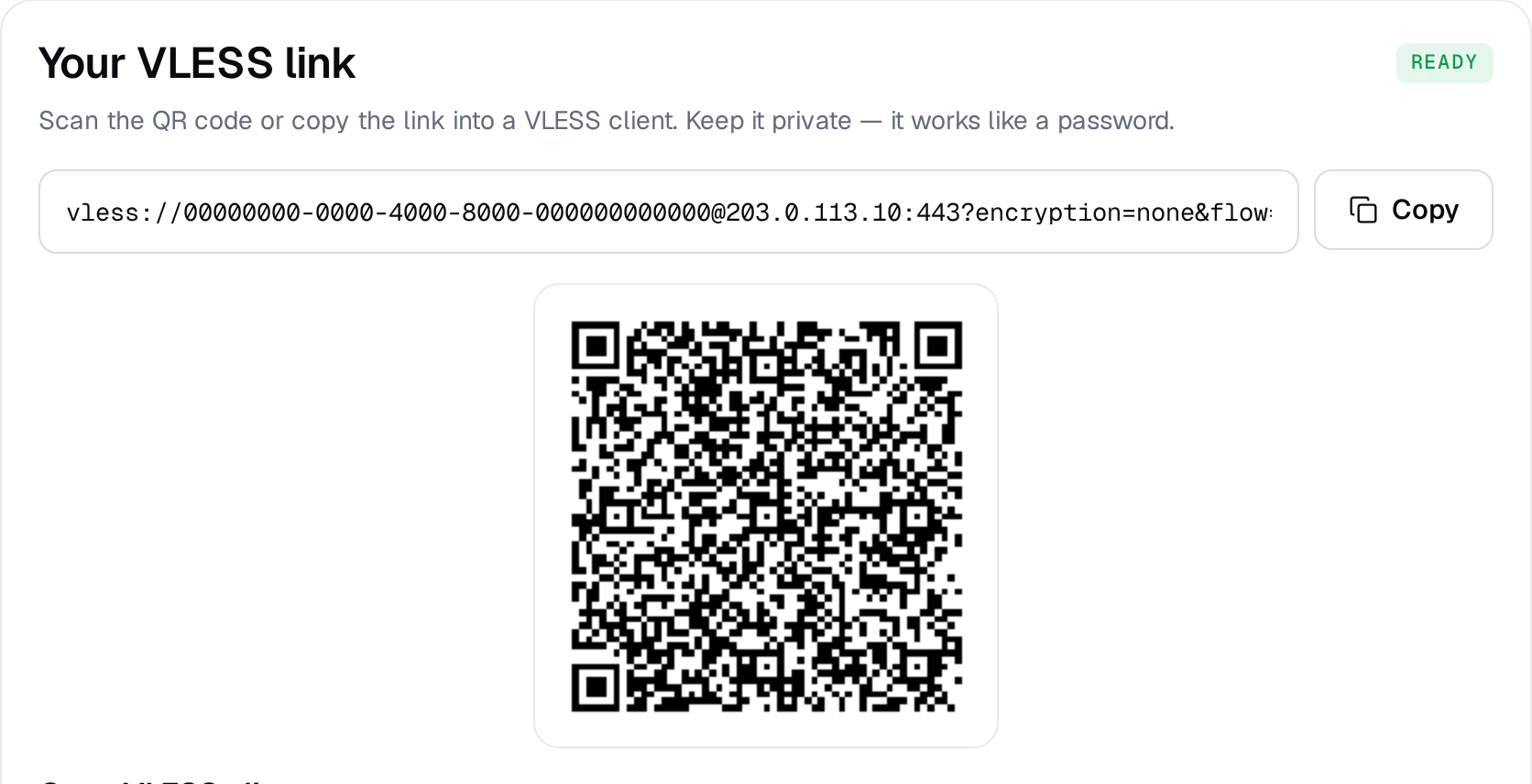
Example result — your values will be different. Device: choose New manual device the first time. Setting up the same device again? Pick it from the list to reuse its credentials instead of creating a new one.
-
Install V2RayTun
Get V2RayTun from the App Store. It’s free. Prefer Hiddify? It works the same way — get it here.
-
Import the configuration
Tap + in the top-right corner. Choose Scan QR code and scan the code from your computer screen — or copy the link on your iPhone and choose Import from clipboard.
9:41●●● ▮V2RayTun+Import from clipboardScan QR codeManual input -
Connect
Select the RealVPN server and tap the connect button. Allow the VPN configuration when iOS asks (Face ID, Touch ID or passcode).
Generate a separate config for your iPhone and your Mac so each shows up as its own device in My devices.