OpenVPN on Linux
NetworkManager GUI or the terminal.
Connect Linux to RealVPN through the desktop network settings or straight from the terminal.
What you need
- Ubuntu, Debian, Mint, Fedora, Arch or similar
- An active RealVPN plan
-
Get your OpenVPN UDP (or TCP) config
Sign in at realvpn.io, open the Account menu and choose Manual VPN setup — or go straight to realvpn.io/settings.
Select OpenVPN UDP (or TCP), choose a location close to you and press Generate config. You’ll get a RealVPN.ovpn file (saved to your Downloads).
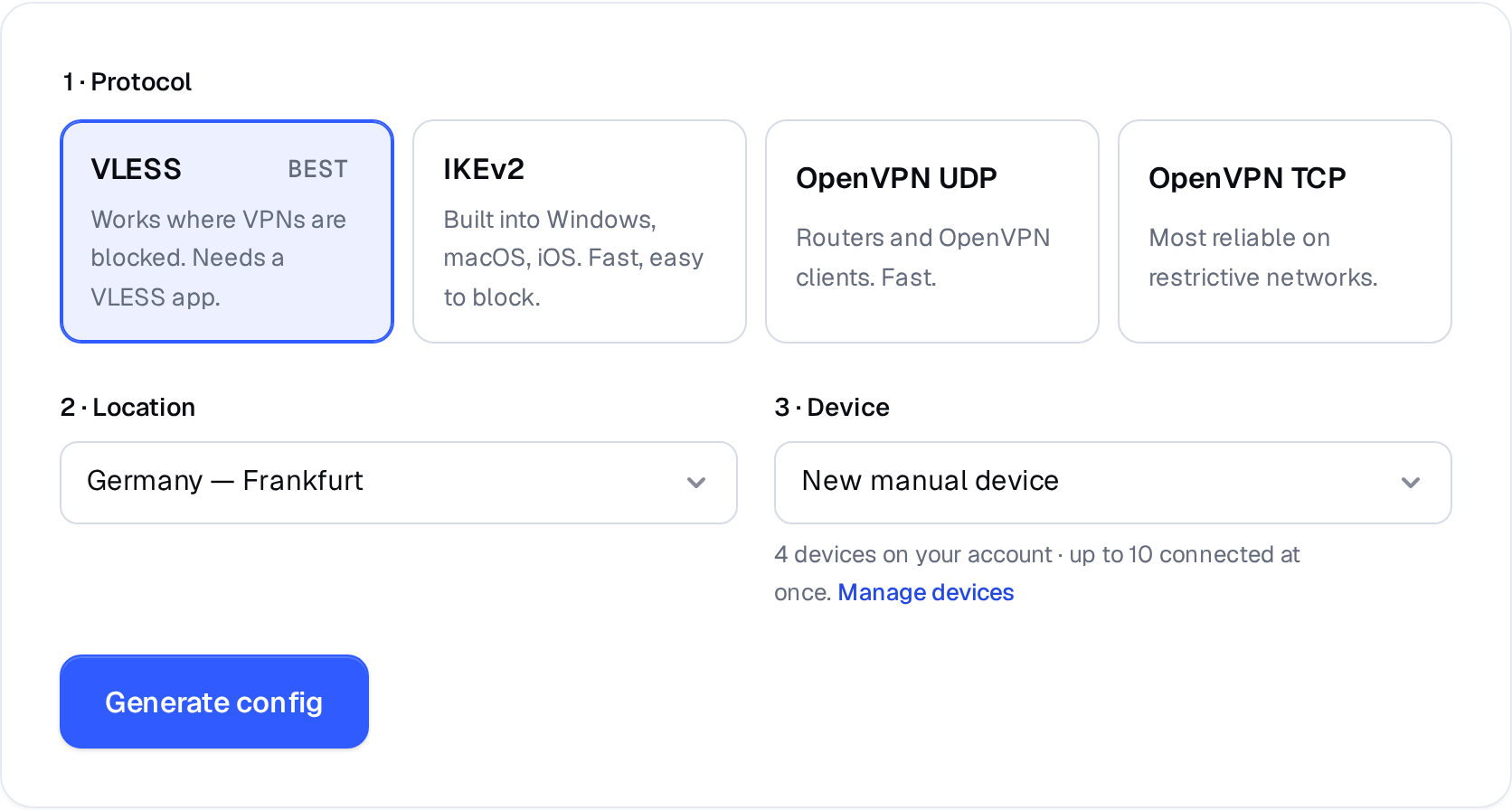
Manual VPN setup: pick a protocol, a location and a device. 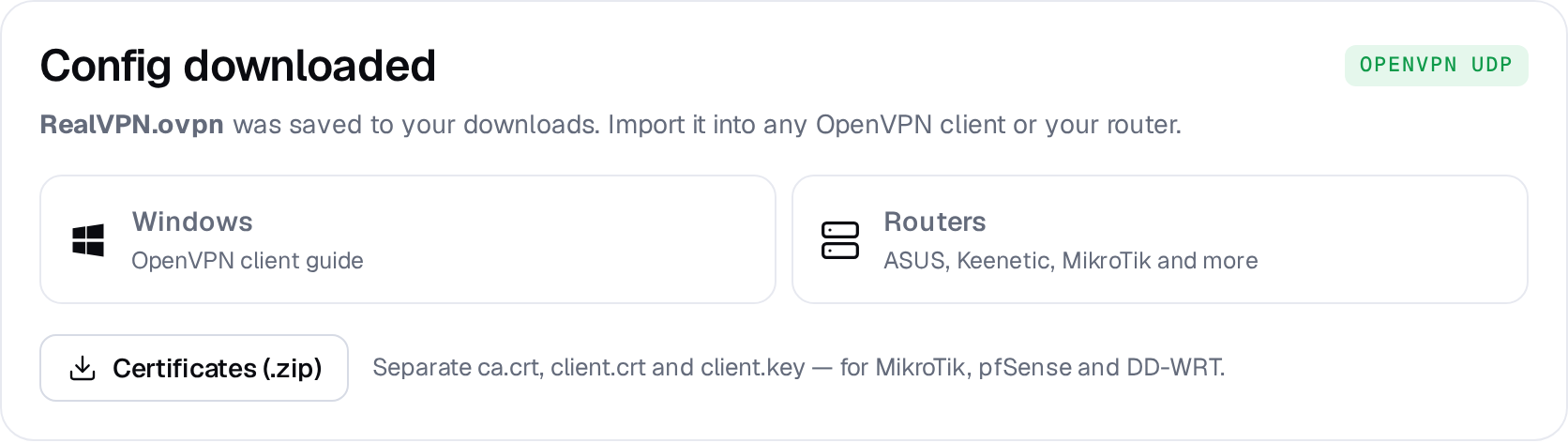
Example result — your values will be different. Device: choose New manual device the first time. Setting up the same device again? Pick it from the list to reuse its credentials instead of creating a new one.
-
Install the OpenVPN plugin
For GNOME/KDE network settings install the NetworkManager plugin:
# Ubuntu / Debian / Mint $ sudo apt install network-manager-openvpn-gnome # Fedora $ sudo dnf install NetworkManager-openvpn-gnome # Arch $ sudo pacman -S networkmanager-openvpn -
Import the file
Open Settings → Network, click + next to VPN and choose Import from file…. Select
RealVPN.ovpnand click Add.OpenVPNIPsec/IKEv2 (strongswan)Import from file… -
Connect
Turn on the RealVPN VPN toggle in the network menu.