RealVPN on Apple TV
Install from the tvOS App Store and stream privately.
RealVPN runs natively on Apple TV — no router tricks needed. Install it from the App Store on your TV, sign in and stream privately.
What you need
- Apple TV HD or Apple TV 4K with tvOS 17.0 or later
- Your RealVPN email and password
-
Open the App Store on your Apple TV
On the Home screen, open App Store, go to Search and type RealVPN. Select it and choose Get.
-
Sign in
Open RealVPN and sign in with the same account you use on your phone or computer. Typing with the remote is slow — you can use the keyboard on your iPhone when the Apple TV keyboard notification appears.
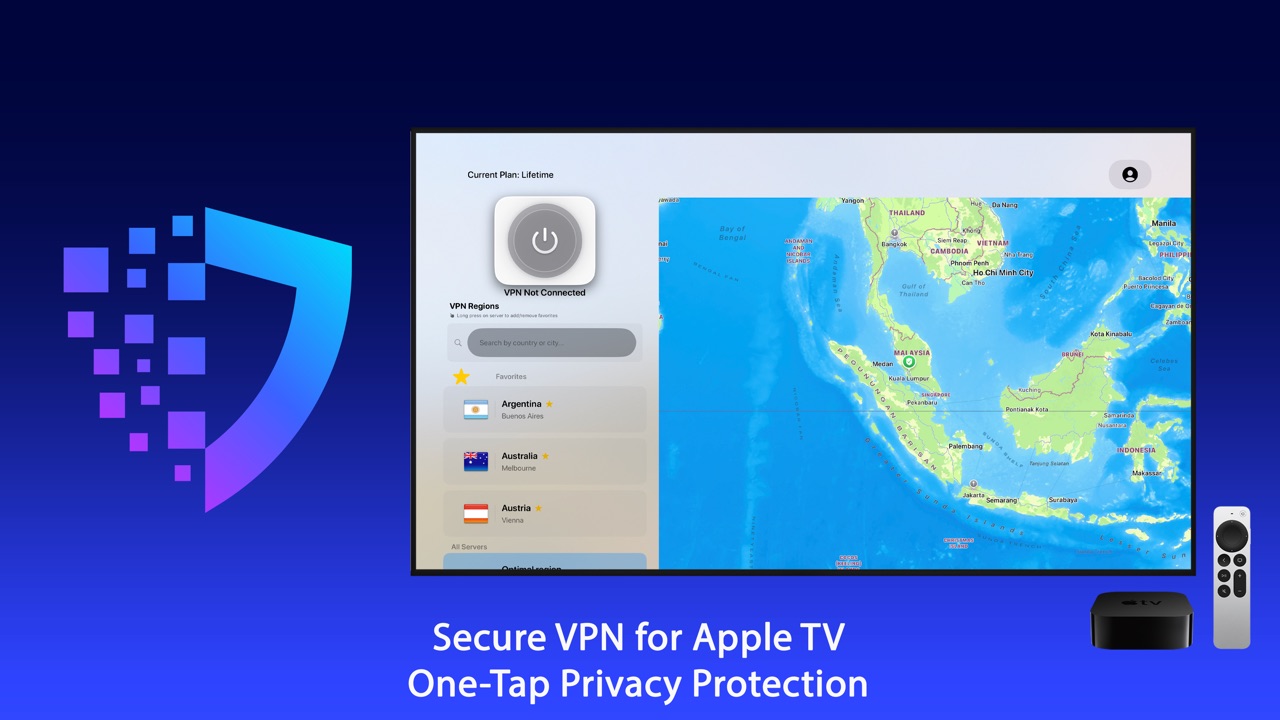
-
Allow the VPN configuration
When tvOS asks to add a VPN configuration, choose Allow.
-
Choose a location and connect
Select Optimal region for the fastest server, or pick a country from the list. Press the select button on the remote to connect.
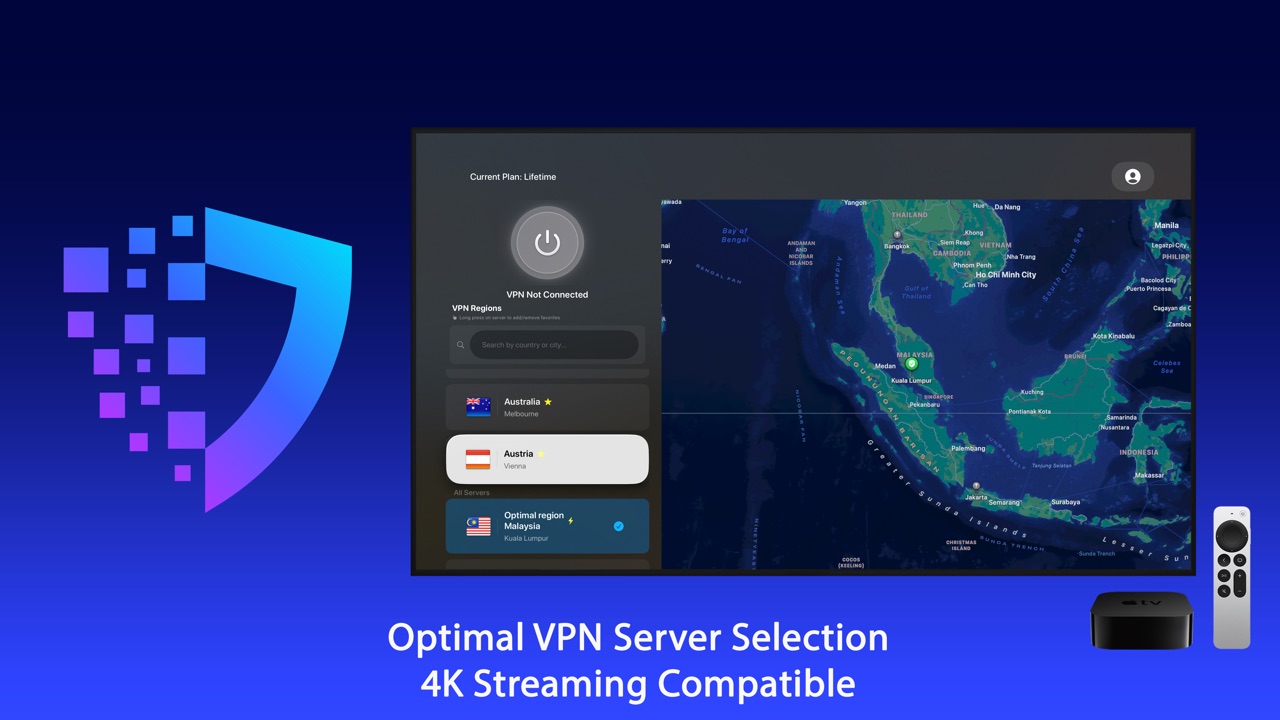
-
Pin favorites and check statistics
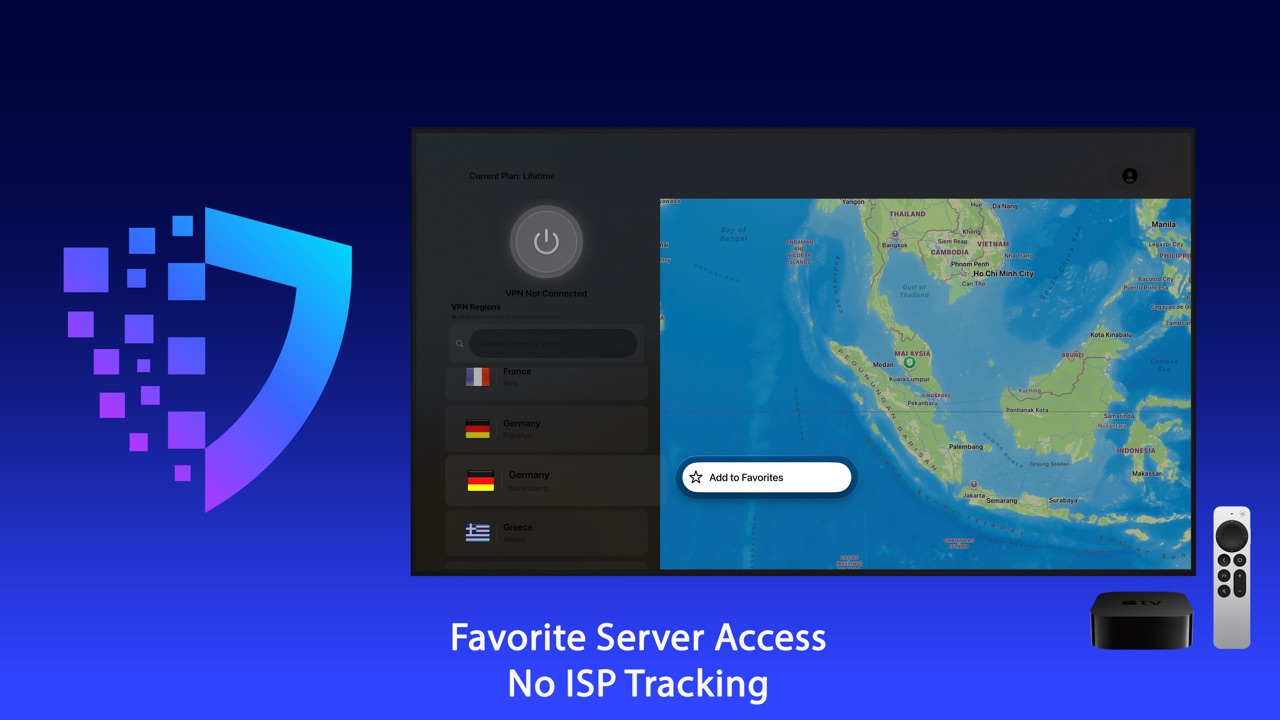
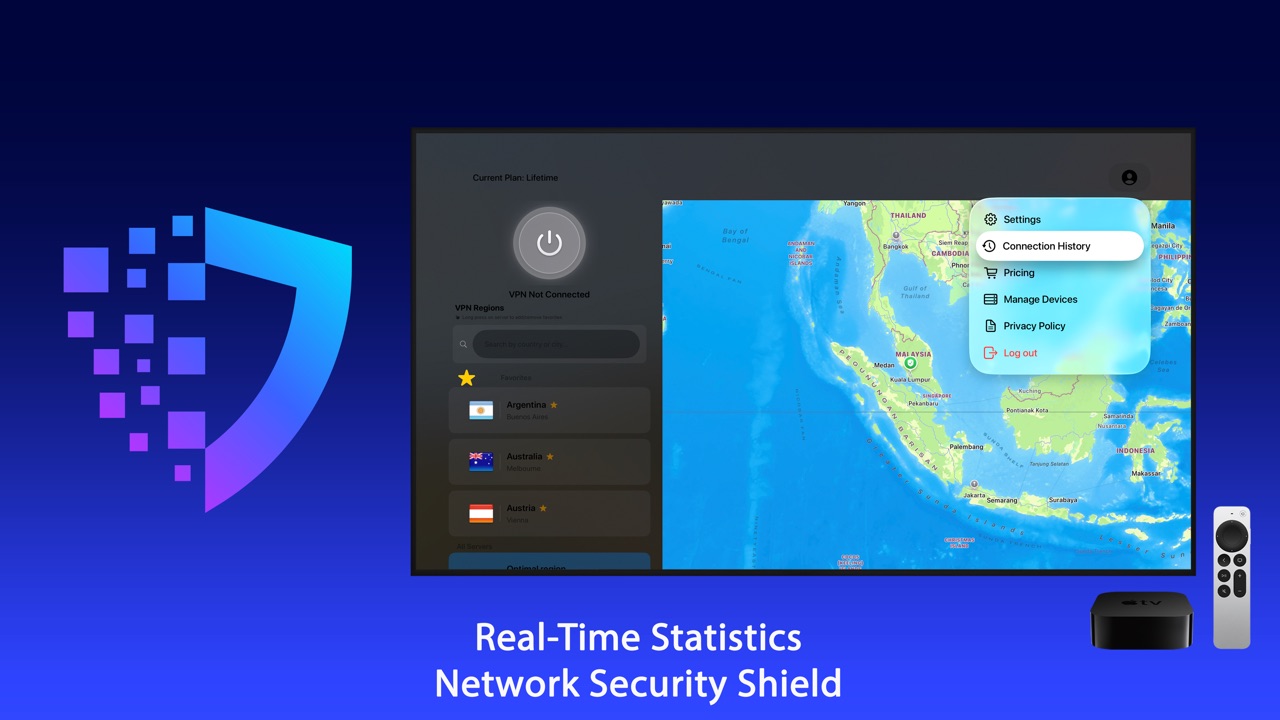
Mark the locations you use most as favorites, and watch real-time connection statistics on the map screen.
Settings on Apple TV
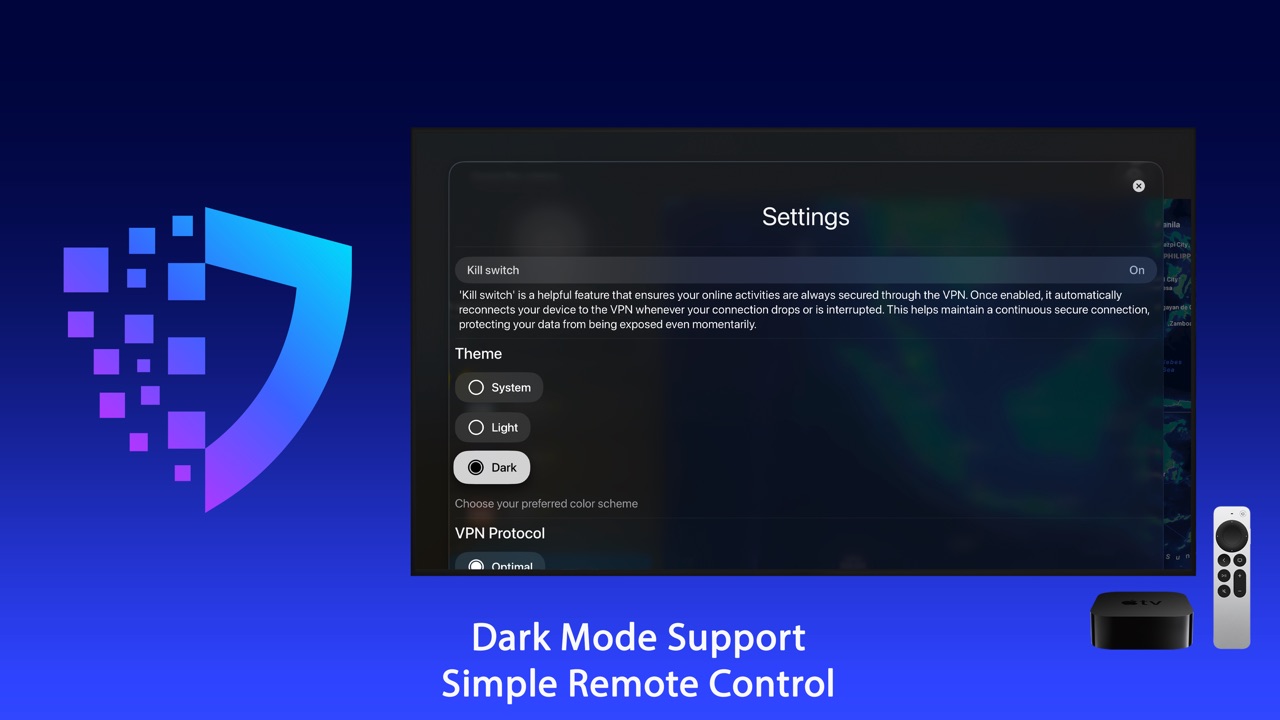
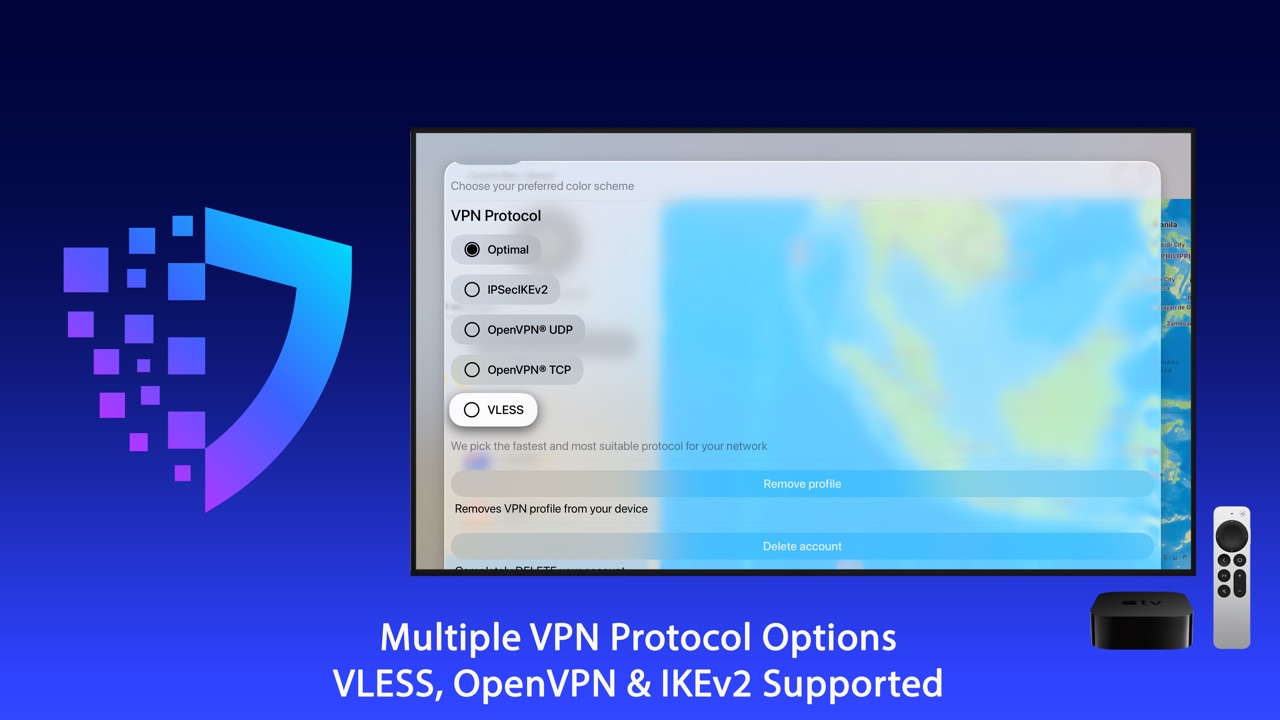
In Settings you can switch the VPN protocol (IKEv2, OpenVPN or VLESS), change the theme and manage your account.
The Apple TV counts as one of your devices. See how device slots work.