VLESS on Android with Hiddify
Scan the QR code and go.
Hiddify is the easiest way to use VLESS on Android phones, tablets and Android TV boxes.
What you need
- An Android phone, tablet or TV box
- An active RealVPN plan
- About 5 minutes
-
Get your VLESS config
Sign in at realvpn.io, open the Account menu and choose Manual VPN setup — or go straight to realvpn.io/settings.
Select VLESS, choose a location close to you and press Generate config. You’ll get a VLESS link and a QR code.
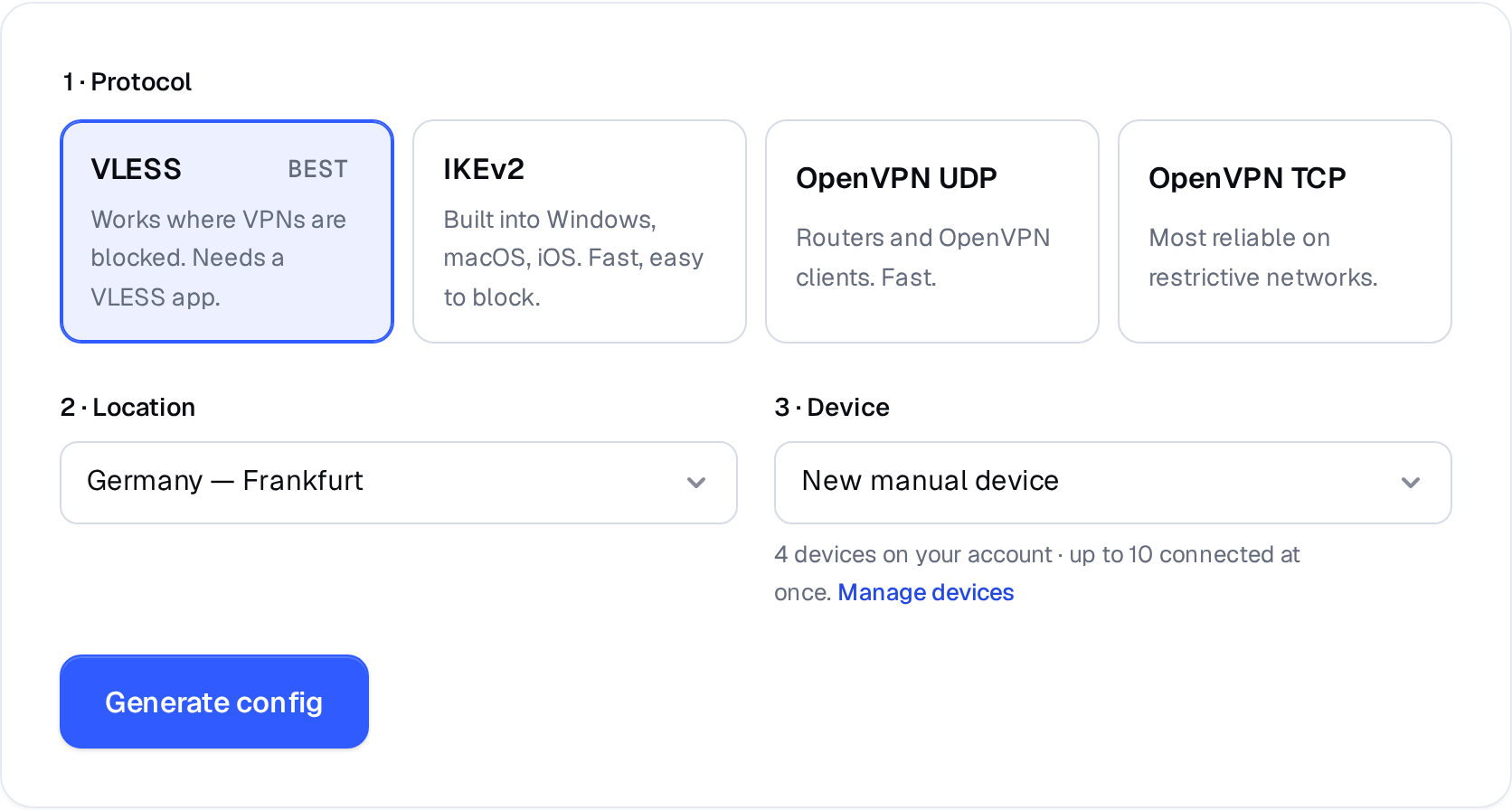
Manual VPN setup: pick a protocol, a location and a device. 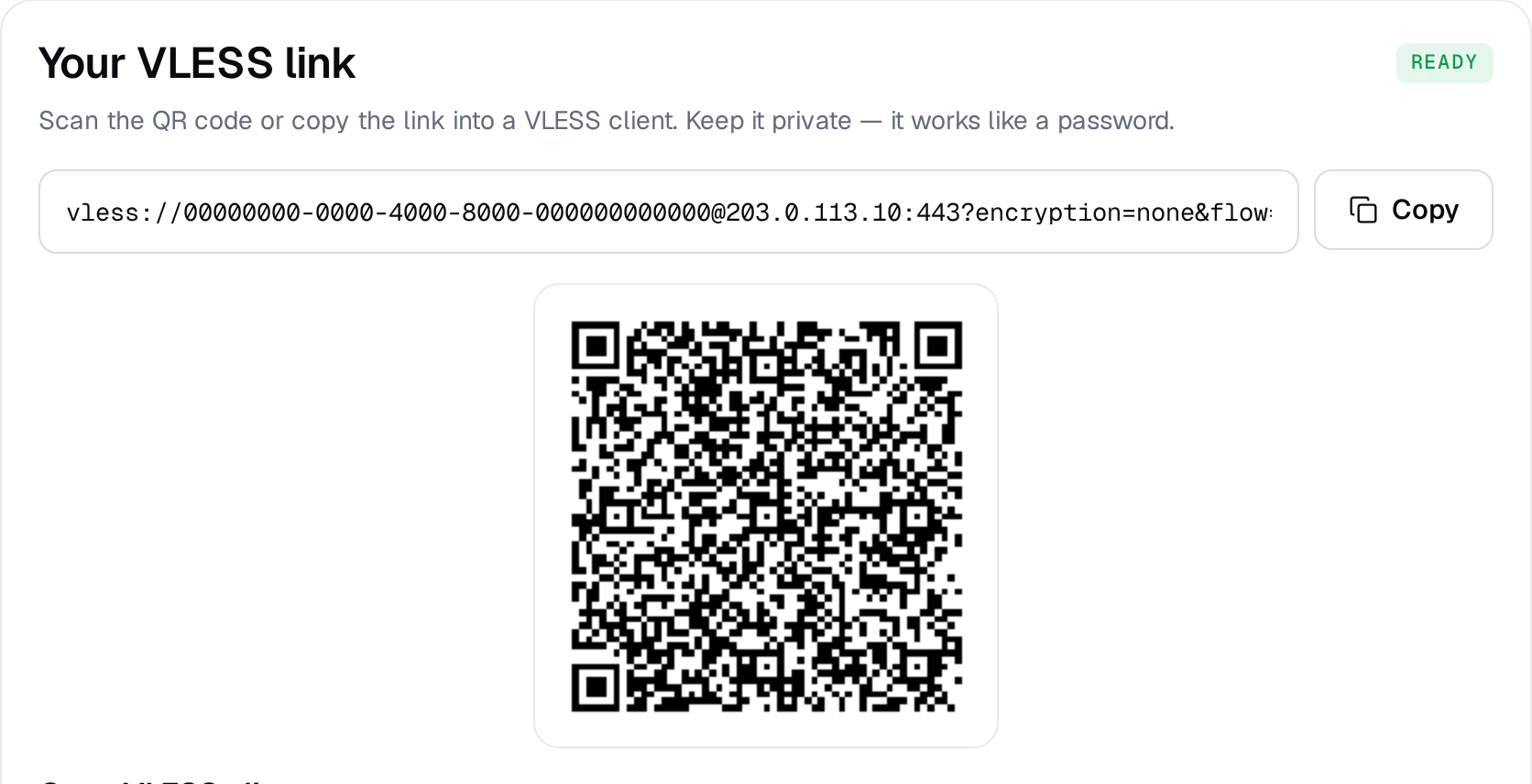
Example result — your values will be different. Device: choose New manual device the first time. Setting up the same device again? Pick it from the list to reuse its credentials instead of creating a new one.
-
Install Hiddify
Install Hiddify from Google Play. No Play Store? Download the .apk from the official GitHub releases.
-
Add the profile
Easiest: open the config page on your computer, then in Hiddify tap + New Profile → Scan QR code and point the camera at the QR code. On the phone itself, tap Copy and choose Add from clipboard.
9:41●●● ▮Profiles New ProfileAdd from clipboardScan QR codeAdd manually -
Keep the default VPN mode
On Android Hiddify works as a system VPN by default — every app is protected.
-
Connect
Select the RealVPN profile and press the big connect button. Tap OK when Android shows the Connection request.
9:41●●● ▮Connected · RealVPN -
Check it works
Open realvpn.io — the Live check card at the top shows the IP and country websites see. It should be the RealVPN server, not your own.
Hiddify can’t connect? Generate a config for another location, or check I can’t connect. Generate a separate config for each device so you can manage them individually in My devices.