Keenetic routers
OpenVPN connection in KeeneticOS.
KeeneticOS has an OpenVPN client built in. You paste the contents of the .ovpn file straight into the web interface.
What you need
- A Keenetic router with KeeneticOS 3.x or 4.x
- The OpenVPN client component installed
-
Get your OpenVPN file
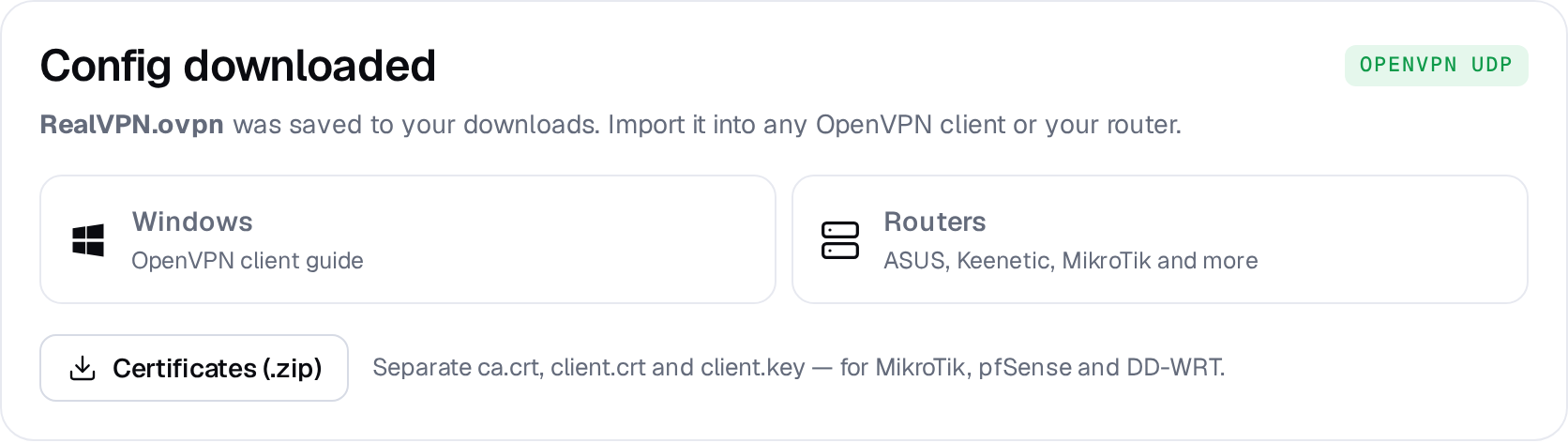
On realvpn.io/settings choose OpenVPN UDP, a location and New manual device, then press Generate config. RealVPN.ovpn is saved to your Downloads.
-
Install the OpenVPN component
Open my.keenetic.net → Management → General system settings → Component options, tick OpenVPN client and install the update. The router restarts.
-
Create the connection
Go to Internet → Other connections → VPN connections and click Add connection.
Keenetic · VPN connection settingsSaveUse to access InternetConnection nameRealVPNType (protocol)OpenVPNOpenVPN configurationclient
dev tun
proto udp …Choose type OpenVPN, open
RealVPN.ovpnin a text editor, copy everything and paste it into OpenVPN configuration. Tick Use to access the Internet and click Save. -
Turn it on
Flip the switch next to RealVPN in the list. To route only some devices, use Internet → Connection priorities and assign devices to a policy that uses RealVPN.