RealVPN on Android
Google Play or APK, always-on VPN.
RealVPN for Android phones and tablets: install, connect, and make the VPN always-on.
What you need
- Android 9 or later
- A RealVPN account
-
Install RealVPN
Get it on Google Play. If Google Play isn’t available, download the APK, open it and allow installing from your browser when Android asks.
-
Sign in and allow the connection request
Open RealVPN and sign in. On first connect Android shows “Connection request” — tap OK.
-
Pick a location and connect
Tap the power button. Search the list to pick a specific country or keep Optimal region.
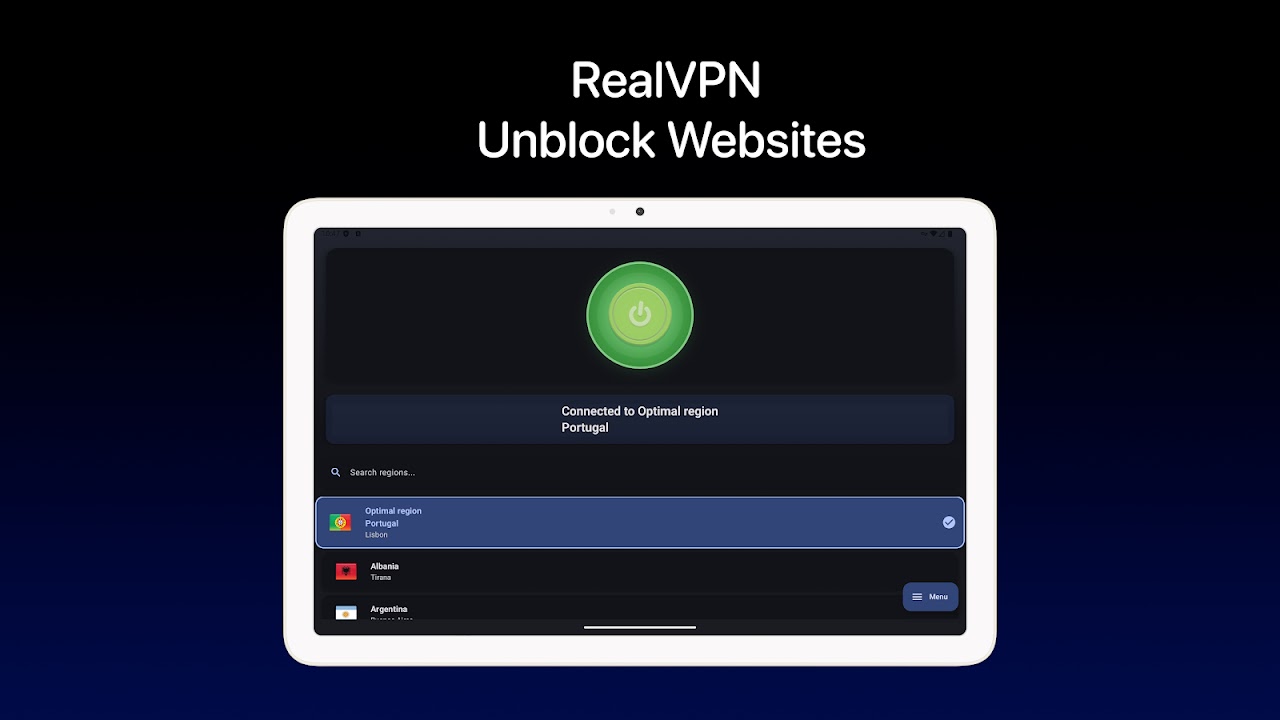
Connected to Optimal region. 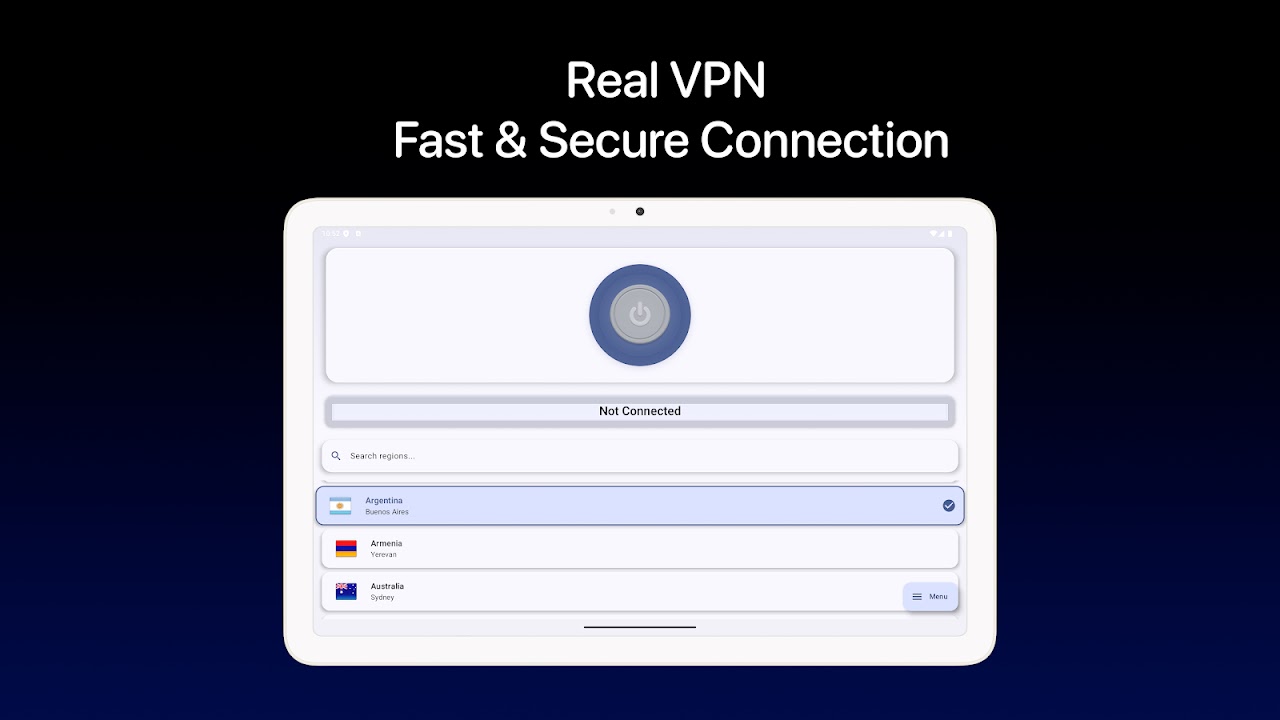
-
Make it always-on (recommended)
Open Android Settings → Network & internet → VPN, tap the gear next to RealVPN and enable Always-on VPN. Menu names vary slightly between Samsung, Xiaomi and Pixel phones.
9:41●●● ▮VPNRealVPN ConnectedAlways-on VPNBlock connections without VPN
Some phones (Xiaomi, Huawei, Samsung) aggressively stop background apps. If RealVPN disconnects when the screen is off, set battery usage for RealVPN to Unrestricted.